Not every Android has a record button in the call screen, and where it exists the other party gets a notice and all you get back is an audio file. With the Ajora app you switch on call forwarding once, after which Ajora joins automatically whenever you call or are called. What you get is a summary with action items rather than a recording.
Ajora records your phone calls automatically. A few minutes after you hang up, a summary with action items is ready.
Can an Android phone record a call by itself?
Sometimes. Whether there is a record button in your call screen depends on your brand, your model and your country, and where it exists the other party gets a notice the moment recording starts. Where it exists, you can also set the Phone app from Google and from Samsung to record calls with chosen numbers automatically. Ajora, a Dutch app that joins your phone calls, works regardless of brand and model: with call forwarding on, Ajora joins incoming calls by itself too, as long as your carrier allows call forwarding.
Android has no recording feature that works the same way on every handset. Google’s Phone app does have call recording, but Google states itself that you have to be in a country or region where it is supported and that only certain devices and carriers can do it. For Pixel devices that means Pixel 6 and up with Android 14 or later.
And if it does work for you, it does not happen quietly. Before recording starts, Google notifies everyone on the line that the call is being recorded. Manufacturers such as Samsung ship their own record button in their dialler, also varying by country, and there too both sides are told. The quickest way to find out where you stand: call someone and see whether a Record button appears in your call screen.
Even when the record button is there, what you get is an audio file. Whatever was agreed you still have to listen back to and type out, and unless you set it to record chosen numbers automatically, you have to remember to press the button on every call. That is a different problem from whether recording is technically possible.
Why is there no call recording on my Samsung?
Samsung puts call recording in its own Phone app, but does not ship it in every country or with every software version. If the Phone app settings show no option to record calls, your Samsung does not have it, and an app from the Play Store will not add it.
Checking takes half a minute: open the Phone app, tap the three dots and then Settings. Samsung’s Dutch support page adds that the Record button sometimes has to be switched on first, under Supplementary services. If there is an option to record calls, your phone can do it by itself, and both you and the other person get a notice that the recording is running. People look this up for every range, from the Galaxy A54, A55 and A56 to the S23, S24 and S25 Ultra, and the answer starts with the same check each time.
For Ajora the model makes no difference. Call forwarding is a feature of the network, so it works the same way on every Galaxy, incoming calls included.
Why do call recording apps often fail on Android?
Since 11 May 2022, apps on Google Play may no longer use the Accessibility API to record call audio. Only Google’s own dialler and the one your manufacturer ships can still reach the call.
The developer policy puts it literally: the Accessibility API is not designed for, and cannot be requested for, remote call audio recording. That is why the recording apps you could still find in the Play Store a few years ago have disappeared, or now capture only your side of the call.
The apps and devices that still manage it work around the call audio. TapeACall dials its own recording line and has you merge it in; devices like Plaud and Pocket read the sound out of your phone’s housing. Both work, and both come with conditions of their own. They are written out in Ajora vs TapeACall and Plaud vs Pocket vs Ajora.
So how do you capture every call on Android?
By having someone join the call. Ajora joins as an extra participant: outgoing you dial from the app, and for incoming calls you switch on call forwarding. To your phone it is an ordinary conference call, so it works on any brand and any Android version.
Automatically, through call forwarding
You switch on call forwarding once, in the Ajora app. After that Ajora joins by itself and there is nothing to do during the call, not even on a call you were not expecting.
Or by hand, per call
If you would rather pick which calls get captured, you add Ajora during the call. On most handsets that is Add call followed by Merge; the buttons differ per brand.
You decide what gets captured
Contacts can be set to private: calls with those numbers are never captured. Whether incoming calls come along automatically is up to you, by switching call forwarding on or off in the app. When you dial a contact from the app, you choose before the call starts whether Ajora listens in. Once a call is running, you can still drop Ajora out of it.
You get more than a recording
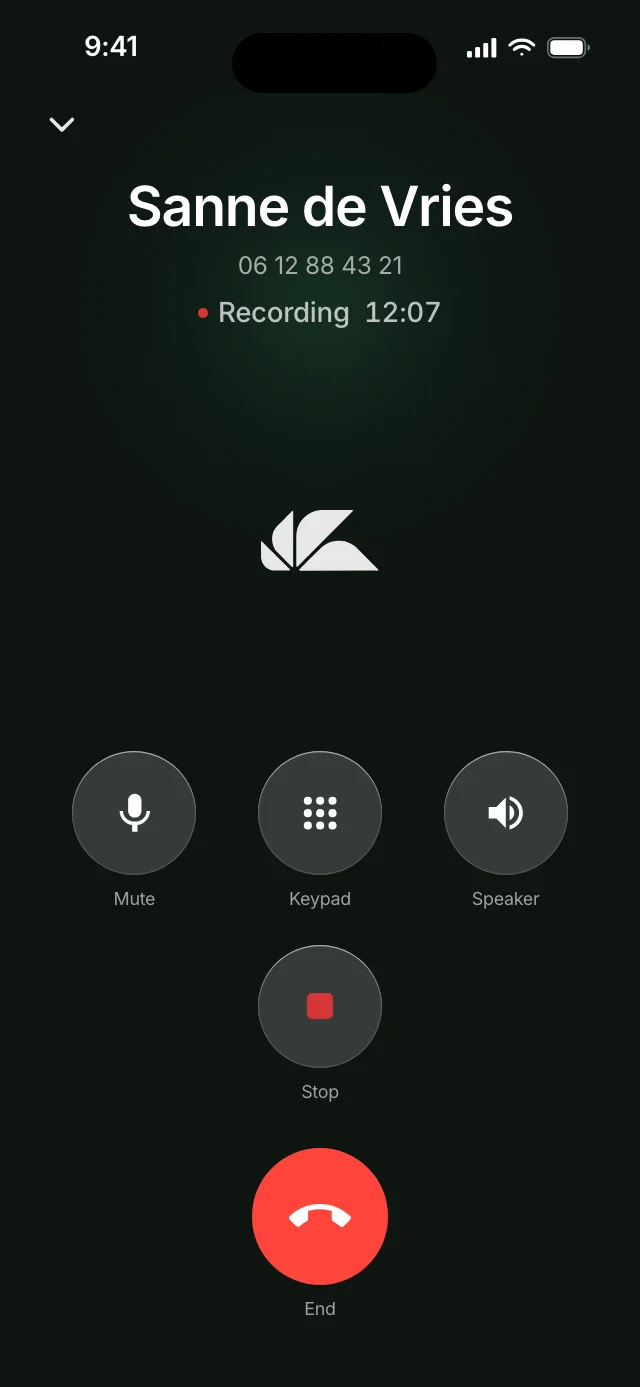
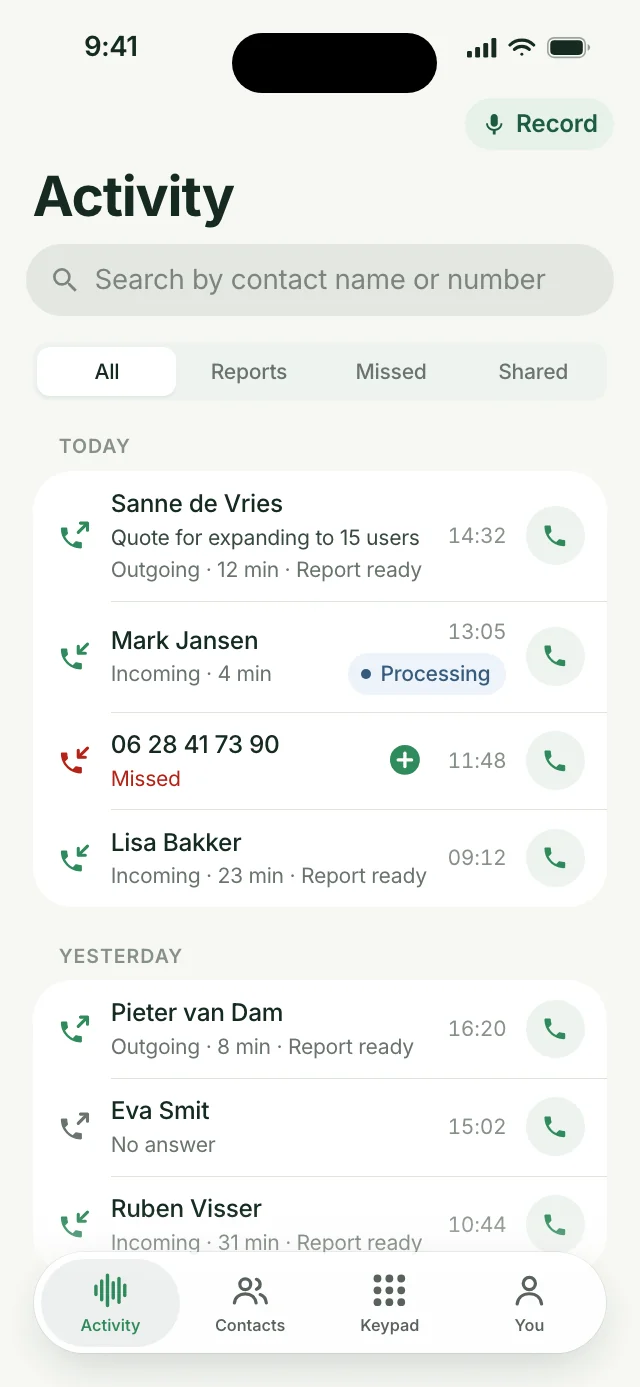
A record button produces an audio file you still have to listen back to. With Ajora, a written-out call is waiting a few minutes after you hang up, with a summary, the action items and the agreements made.
How do you set up automatic recording on Android?
In three steps: create an account, install the Ajora app from the Google Play Store and switch on call forwarding with Activate Ajora. After that there is nothing left to do while you are on the phone.
Create an account and install the app
Set up your account at debrief.ajora.io/register; the first seven days are free, with 60 call minutes and no payment details needed. Then download the Ajora app from the Google Play Store and sign in with the same details.
Switch on call forwarding
In the app you land on the Turn on call forwarding screen. Tap Activate Ajora and the forwarding is set up for you. If that button does nothing, do it yourself in the Phone app: three dots, Settings, then Call forwarding (sometimes under "Supplementary services" and then "Voice calls"), and there Always forward with your Ajora number in it.
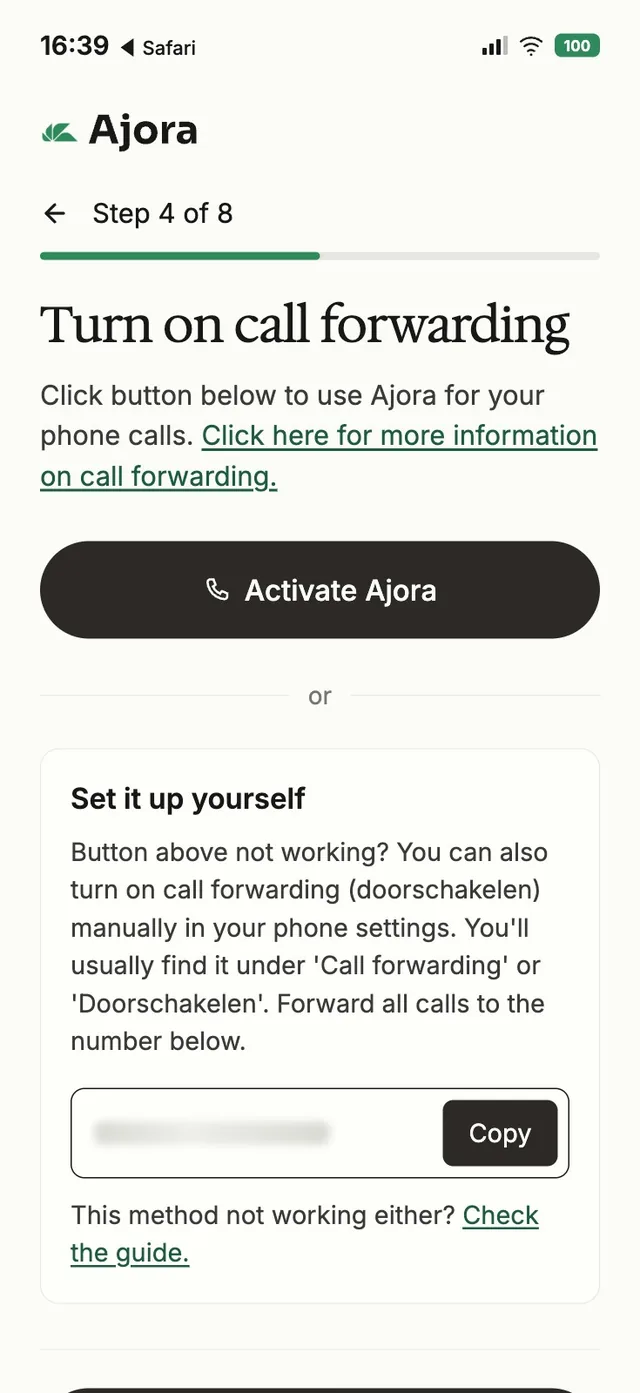
This screen looks the same on Android as it does on an iPhone. Call the way you always do
From now on Ajora joins automatically. You hang up as usual and a few minutes later the debrief is waiting in the app, with an email that takes you straight to it. Setting up call forwarding covers the steps per brand in more detail, with screenshots.
Ajora joins over the internet, so you need wi-fi or mobile data during the call. Without a connection your call runs as normal, but you will not get a debrief of it.
Does this work with every brand and every carrier?
Call forwarding is a function of the mobile network rather than of your phone, so your brand does not matter: Samsung, Google, Xiaomi, OnePlus and Motorola all work. Your carrier does have to allow it.
KPN, Vodafone/Ziggo and Odido allow it, and so do most other plans. A few carriers, Budget Mobiel for example, do not support call forwarding. If you cannot switch it on, add Ajora to your calls by hand following the step-by-step guide.
Where the setting lives inside your phone does differ per brand. On a Samsung, forwarding sits somewhere other than on a Pixel, and some brands bury it under "Supplementary services". The button in the app exists precisely so you do not have to go looking.
Rather decide per call?
Then leave call forwarding off and add Ajora only to the calls you want captured. That costs you a few taps during the call, and it only works on calls you start yourself.
Save Ajora once as a contact, using the number from your account. During a call tap Add call, dial Ajora and then tap Merge. The full walkthrough with screenshots is in adding Ajora to your call by hand.
Are you allowed to record a call on Android?
In the Netherlands you may capture a call as long as you take part in it yourself; that follows from Article 139c of the Dutch Criminal Code. Use the write-up for business and the GDPR applies on top, which means telling the other party the call is being captured.
So the fact that it is technically possible says nothing about whether it is allowed, and that differs per country. With Ajora there is no beep and no announcement when the call is being captured, so telling the other party is on you. The long version is in is it legal to record a call.
Where does the conversation end up?
Your transcripts are stored encrypted on servers in Germany, with a key tied to your account, and they are never used to train AI models. The recording is deleted automatically after transcription, within 24 hours at the latest.
What exactly is processed and how long it is kept is set out in the privacy statement and the security overview. If you work with client data, you can sign the data processing agreement.
Frequently asked questions
Does Android have a built-in way to record phone calls?
Not one that works everywhere. Google’s Phone app can do it, but only in countries and regions where it is supported and on certain devices and carriers; for Pixel that means Pixel 6 and up with Android 14 or later. Manufacturers such as Samsung ship their own record button, again varying by country.
Why is there no record button in my call screen?
Check the Phone app settings first; on a Samsung the option sometimes sits under Supplementary services. If it is not there, your country, your carrier or your handset falls outside the list the feature has been released for, and another dialler from the Play Store will not fix it, because it is not allowed near the call audio.
Can an Android phone record every call automatically?
Only if the recording feature is on your handset. Google’s Phone app can always record calls with chosen and unknown numbers, and Samsung has a setting for all calls or chosen numbers, although Samsung does not ship call recording in every country or on every model. Without that feature, recording only becomes automatic when someone joins the call. Switch on call forwarding in the Ajora app and incoming calls are covered too, with nothing to do while you are on the phone.
Does the other person hear that the call is being captured?
With the recording feature from Google or your manufacturer, yes: everyone on the line gets a notice that the call is being recorded. With Ajora there is no beep and no announcement, so saying it is up to you. For business use, Article 13 of the GDPR requires you to.
Does this work on a Samsung?
Yes, and on any other brand. Ajora attaches to the line rather than to your handset: forwarding is arranged with your carrier and the Ajora app is in the Google Play Store. Only the place where the forwarding setting sits in your menus differs per brand.
Can I record an incoming call on a Samsung?
Yes, through call forwarding. With forwarding switched on in the Ajora app, Ajora joins every incoming call, on every Galaxy model.
Why does a recorder app like Cube ACR not record the other person?
Since 11 May 2022, apps from Google Play may no longer use the Android accessibility feature to capture call audio. Recorder apps therefore often record only your own voice. That goes for every recorder app from the Play Store.
Do I need internet during the call?
Yes. Ajora joins over the internet, so you need wi-fi or mobile data at that moment. Without a connection you will not get a debrief of that call.
Does this work on an iPhone too?
It works the same way there, and there the built-in record button is not an option at all: Apple does not ship call recording in the European Union. See automatically record a phone call on iPhone.
You can try Ajora free for seven days, with 60 call minutes and no payment details needed. Create your account at debrief.ajora.io/register, download the app for iPhone or Android and sign in with the same details. Teams do not get a trial: see Ajora for sales teams.
Sources
- Use the Phone app to record calls, with the conditions per country, device and carrierGoogle, Phone app Help, accessed 17-10-2026
- Permissions and APIs that access sensitive information: the Accessibility API cannot be used for call audio recordingGoogle Play Console Help, accessed 06-09-2026
- Recording a phone call on Android phones (in Dutch)Samsung Netherlands, accessed 17-10-2026
- How to record calls on your Samsung Galaxy phone, automatically and by handSamsung Support, accessed 08-10-2026
- Article 139c of the Dutch Criminal Code: intercepting or recording telecommunicationswetten.overheid.nl

One of the three co-founders of Ajora. Jort focuses on user experience and growth.