Set up forwarding in the Ajora app with one tap on Activate Ajora. Button not working? Turn on call forwarding in your phone settings and forward all your calls to your Ajora number, which you find in the app. So without the Ajora app, forwarding does not work. You turn it off in the same place.
What is call forwarding?
Normally you add Ajora during a call yourself: you call it and tap Merge calls. That works well, but you have to remember it every time. Call forwarding takes that manual step away.
You set up once that Ajora joins your calls automatically as soon as you call. From that moment Ajora listens along by itself and you get your debrief afterwards, without doing anything during the call. We never call you; Ajora simply joins your conversation discreetly.
Calling mostly from an iPhone? Automatically record a phone call on your iPhone explains why iOS has no record button of its own and what call forwarding changes about that. For Android the same story, plus what differs per brand, is in Automatically record a phone call on Android.
What changes exactly, and do I need internet?
Fair question, because you are changing a setting with your carrier. Here is exactly what happens:
It is a standard carrier feature, not an app
Call forwarding is built into every mobile network. You tell your carrier how your calls should be routed. Nothing runs in the background, but you do need the Ajora app: it comes with the Ajora number your calls are forwarded to.
You do need an internet connection
Ajora joins your call over the internet. So at the moment you call you need an active connection: wifi or mobile data. With no internet at that moment Ajora cannot join and you get no debrief of that call.
How you see it on your phone
While forwarding is active, a small forwarding icon can appear at the top of your screen: a phone with an arrow. On an iPhone you also find the setting under Settings → Apps → Phone → Call Forwarding, on Android in the settings of the Phone app.
You stay in control
Nothing changes permanently. You can switch forwarding off yourself at any time, in the app or in your phone settings, and your calls go back to normal right away.
Method 1: through the app
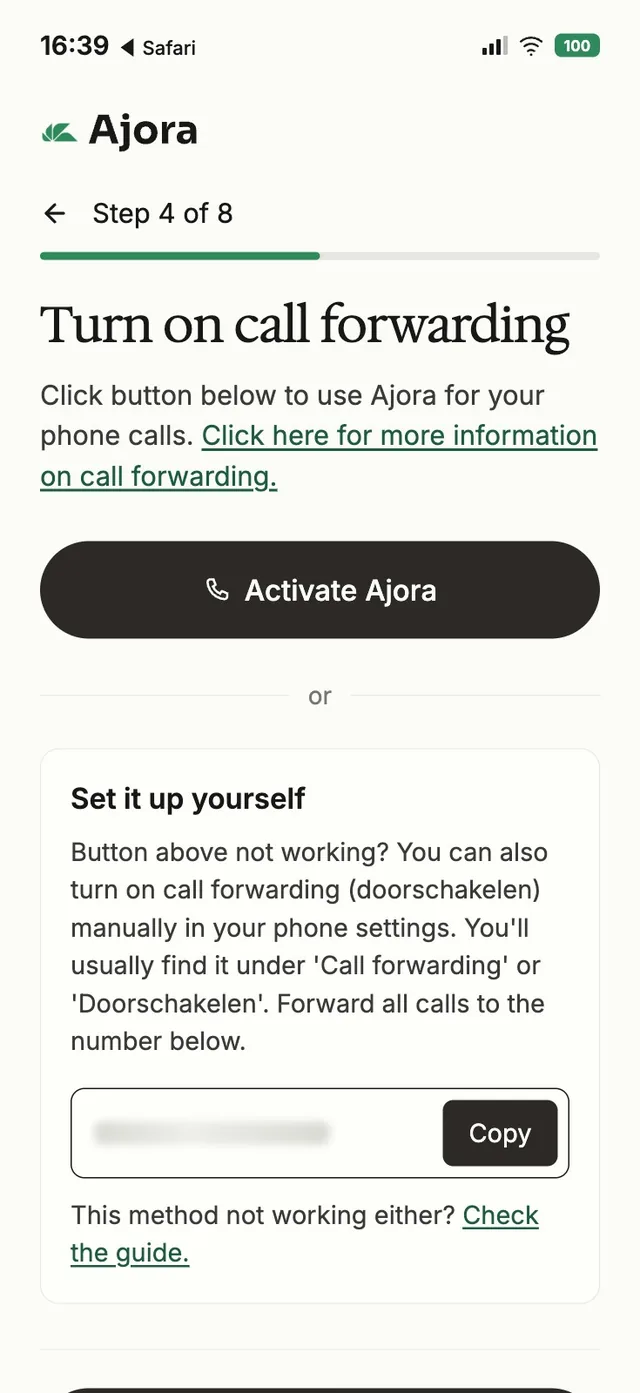
During setup the app shows a Turn on call forwarding screen. Tap the Activate Ajora button and the app turns forwarding on for you, without you typing anything. This screen looks the same on Android.
Method 2: through your phone settings
Is the Activate Ajora button not working? Then turn on call forwarding yourself in your phone settings. You forward all your calls to your Ajora number.
You find your Ajora number to forward to in the app, on the "Turn on call forwarding" screen under "Set it up yourself", with a copy button next to it.
On iPhone
Open Settings
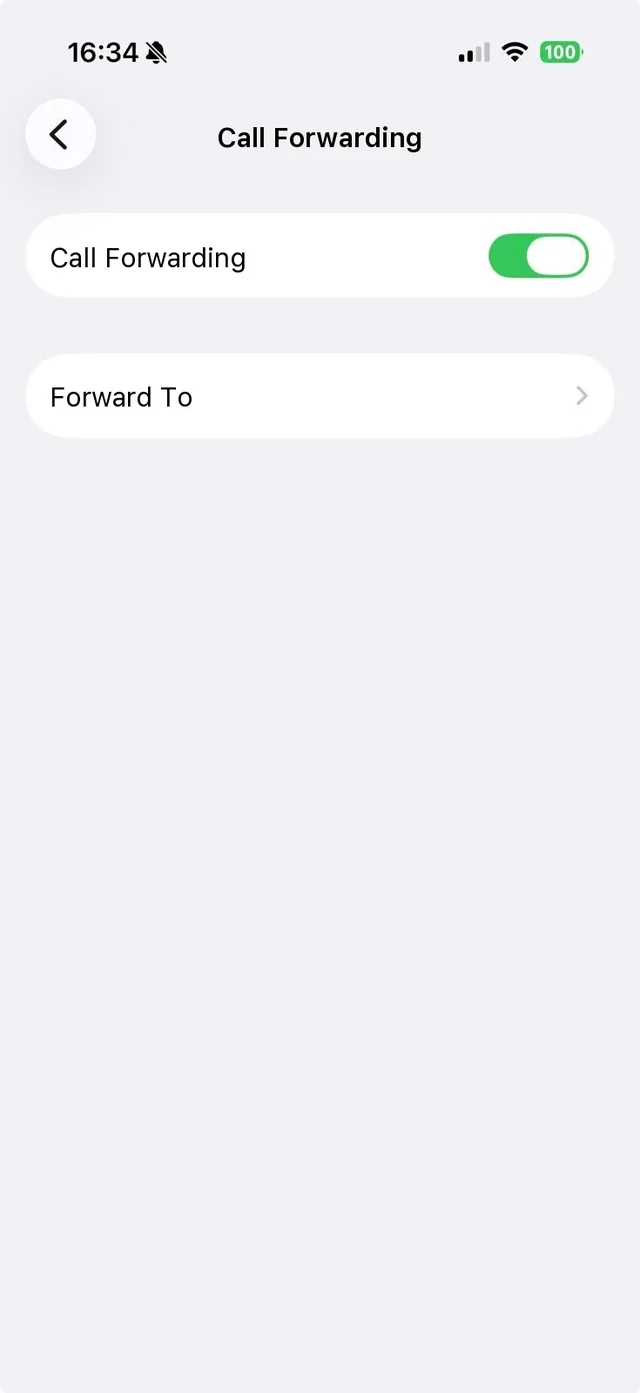
Go to Settings → Apps → Phone → Call Forwarding.
Turn forwarding on
Switch Call Forwarding on with the toggle.
Enter your Ajora number
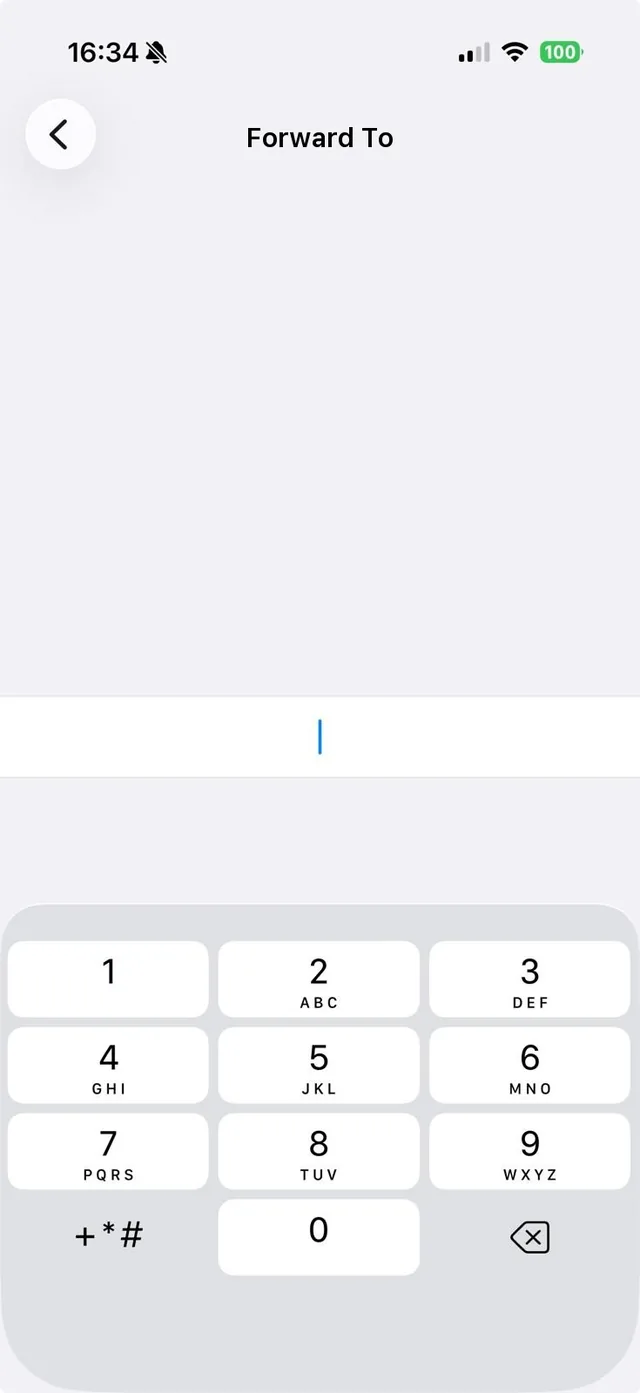
Tap Forward To and enter your Ajora number. Done.
On Android
Open the Phone app
Tap the three dots or the menu and go to Settings.
Go to Call forwarding
Sometimes this sits under "Supplementary services" and then under "Voice call".
Choose Always forward
Enter your Ajora number and switch it on. The screens differ per brand, such as Samsung or Google.
Does it work with my carrier?
Call forwarding works with the major Dutch carriers such as KPN, Vodafone/Ziggo and Odido, and with most other plans. A few carriers do not allow it, for example Budget Mobiel. Cannot switch it on? Then add Ajora to your calls manually, following the step-by-step guide.
Switching call forwarding off again
Want no automatic debriefs for a while? Switch forwarding off in the app, or turn the Call Forwarding toggle off again in your phone settings. Your calls go back to normal right away. You can always switch it back on later.
Something not working?
The "Activate Ajora" button does nothing
Set up forwarding manually through your phone settings, method 2 above. You forward all your calls to your Ajora number from the app. Does that not work either? Email support@ajora.io.
I get no debrief
Check whether forwarding is still on, in the app or in your phone settings, and whether you had internet during the call. If it keeps failing, email support with the date and time of the call.
I cannot switch call forwarding off
Switch it off in the app first. If your phone keeps forwarding, type ##002# in the Phone app and call that code. It is the standard network code for clearing call forwarding, and the same one the app uses. It clears every forward on your number, including one to your voicemail if you had set that up. If it still does not work, email support@ajora.io.
My carrier does not support call forwarding
A small number of carriers, such as Budget Mobiel, do not support forwarding. Add Ajora manually following the guide, or email support@ajora.io so we can help.
Stuck, or unsure about a step? Email support@ajora.io or get in touch, and we will happily walk you through the settings the first time.