Save Ajora once as a contact in your phone, using the number from your account. During a call you then add it through the three dots and Merge calls. Hanging up is enough, the summary arrives on its own.
Before you start
You need an account. That is where you find your own personal Ajora phone number. You will need that number shortly to save Ajora in your phone.
Create an account
Open your browser and go to debrief.ajora.io/register. Fill in your name, email address and a password. Then check your email: you receive a confirmation message and your account is only active once you click that link.
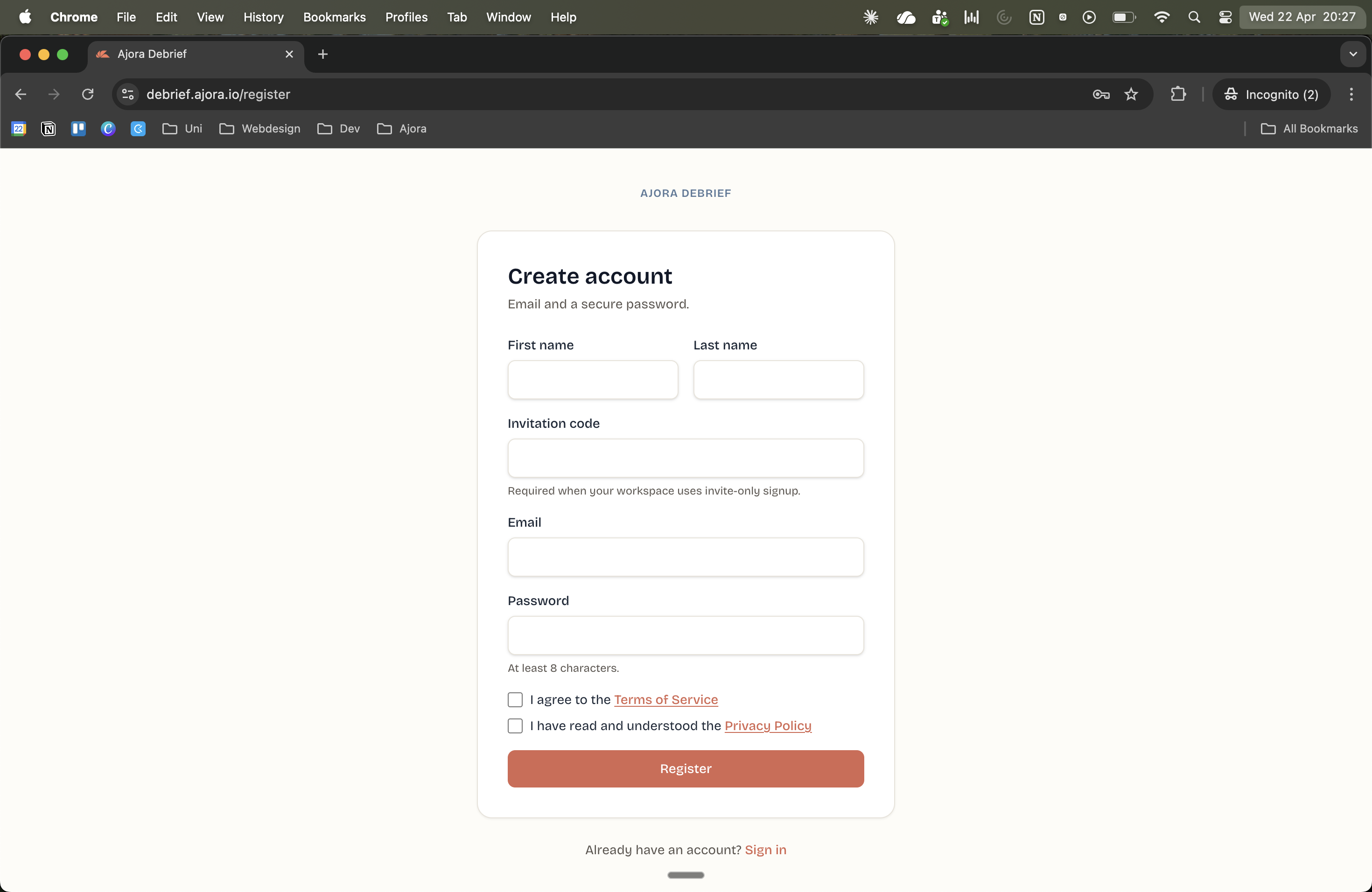
Create an account at debrief.ajora.io/register Log in with your account
Confirmed your email? Then go to debrief.ajora.io/login and sign in.
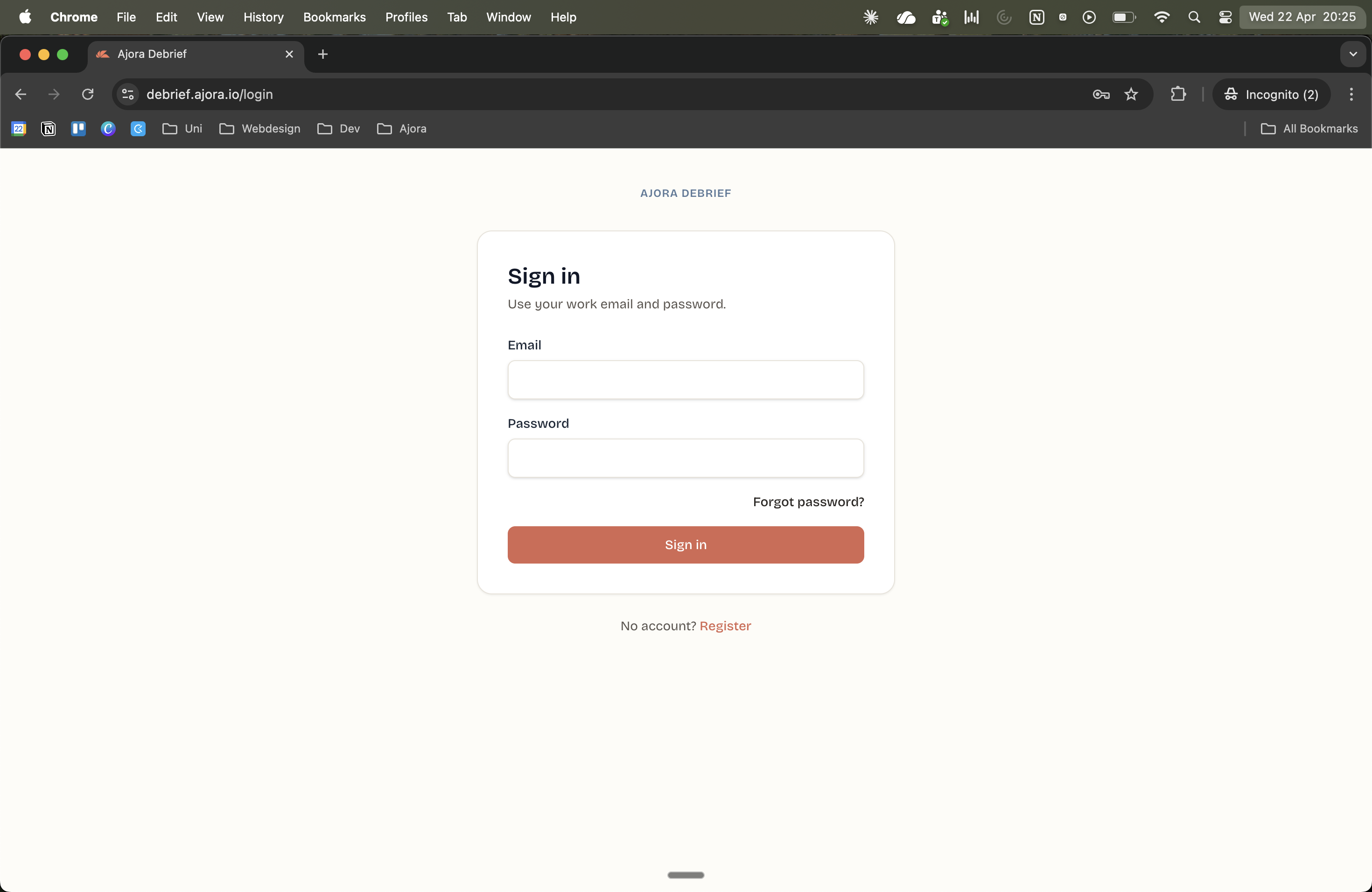
Log in via debrief.ajora.io/login Find your personal number in the dashboard
After logging in you land in the dashboard. Follow step 2: Save the Debrief number in your contacts. The number you see is your personal Ajora number. Write it down, you need it in a moment.
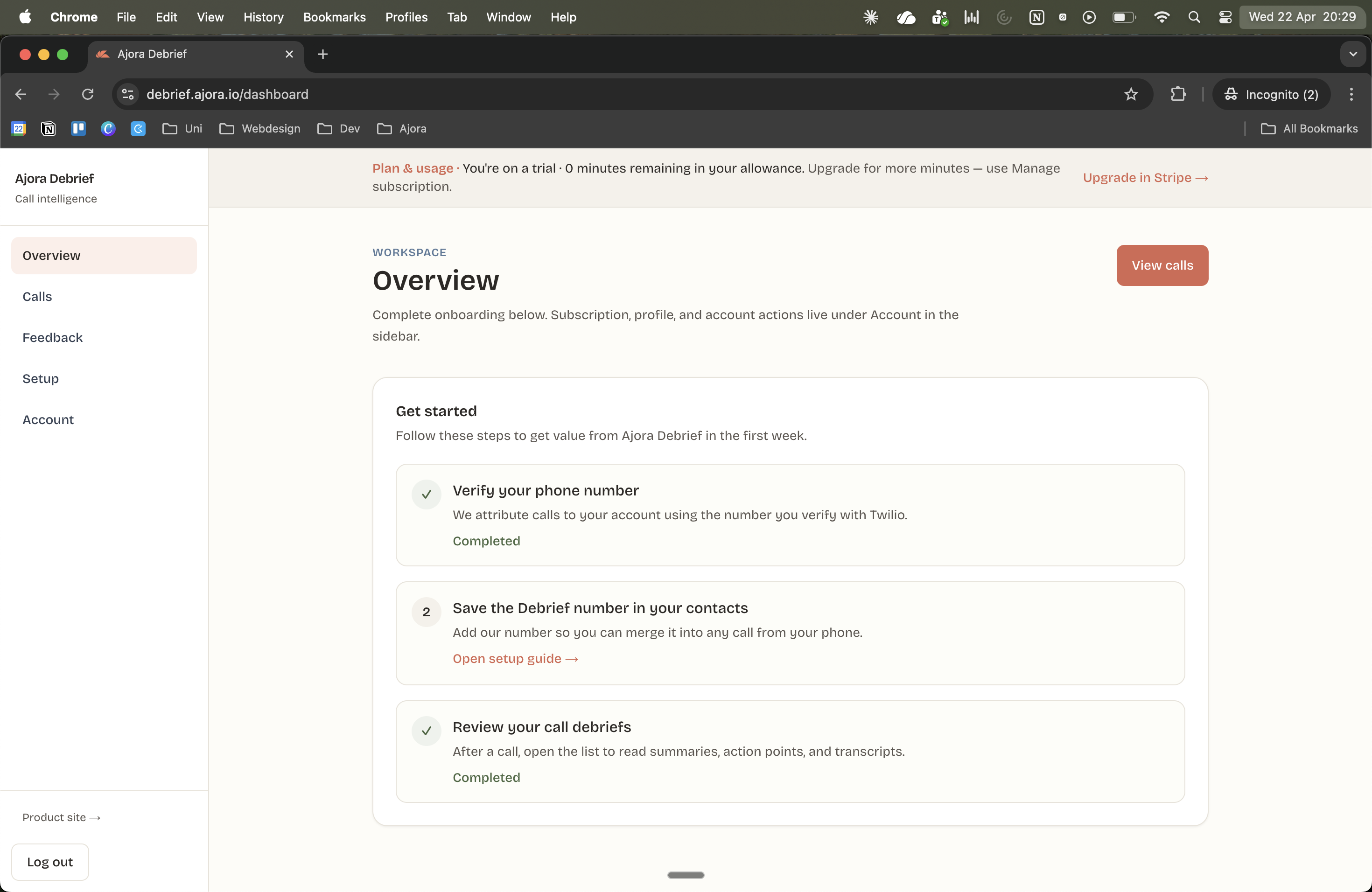
The dashboard holds your personal number
Part 1: save Ajora once as a contact
You do this once. After that Ajora stays in your phone and you can bring it into a call quickly.
Add a new contact
Open the Contacts app on your phone. Tap the round plus icon in the bottom right to create a new contact.
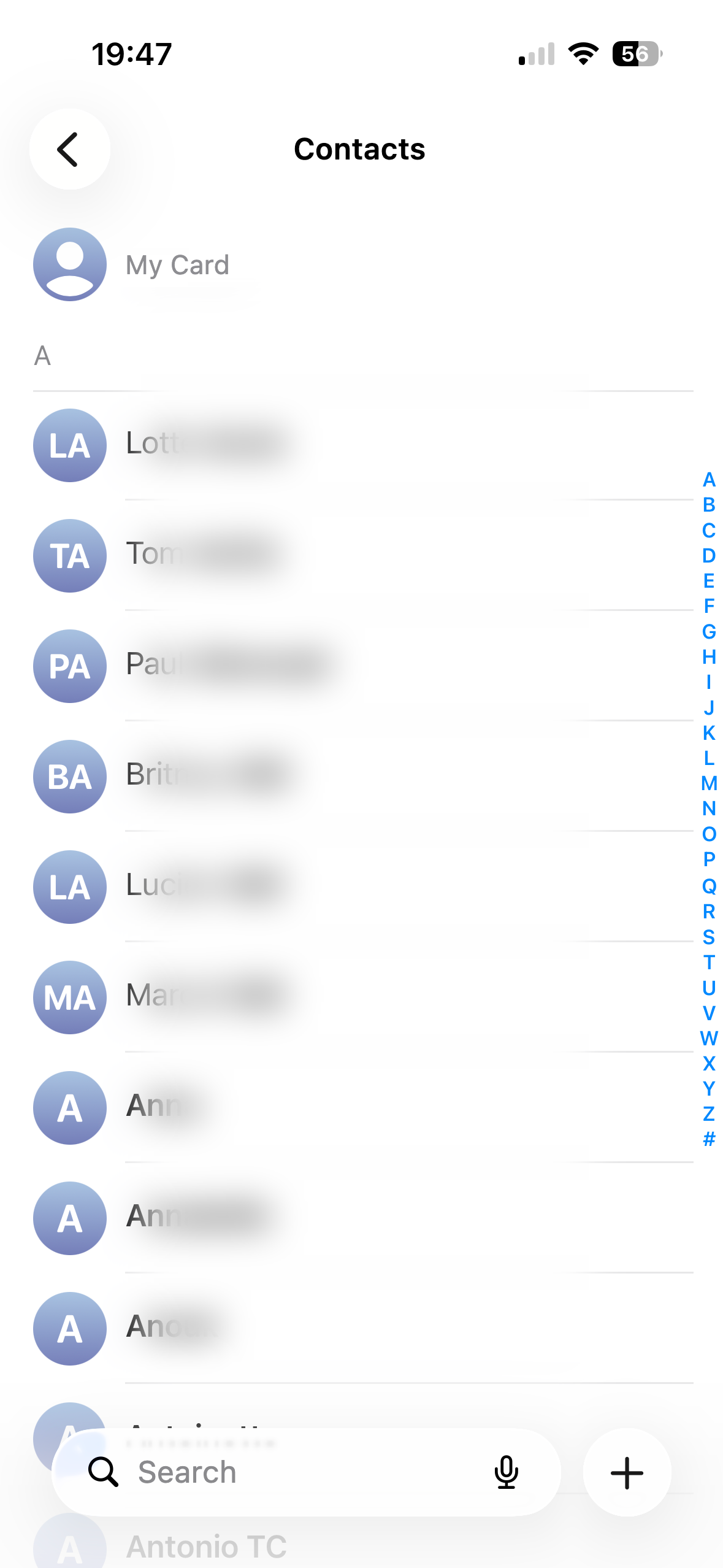
Enter Ajora's details
An empty screen for a new contact appears. Fill in First name Ajora and, under Phone, the number you got from your account. Then tap the checkmark in the top right to save.
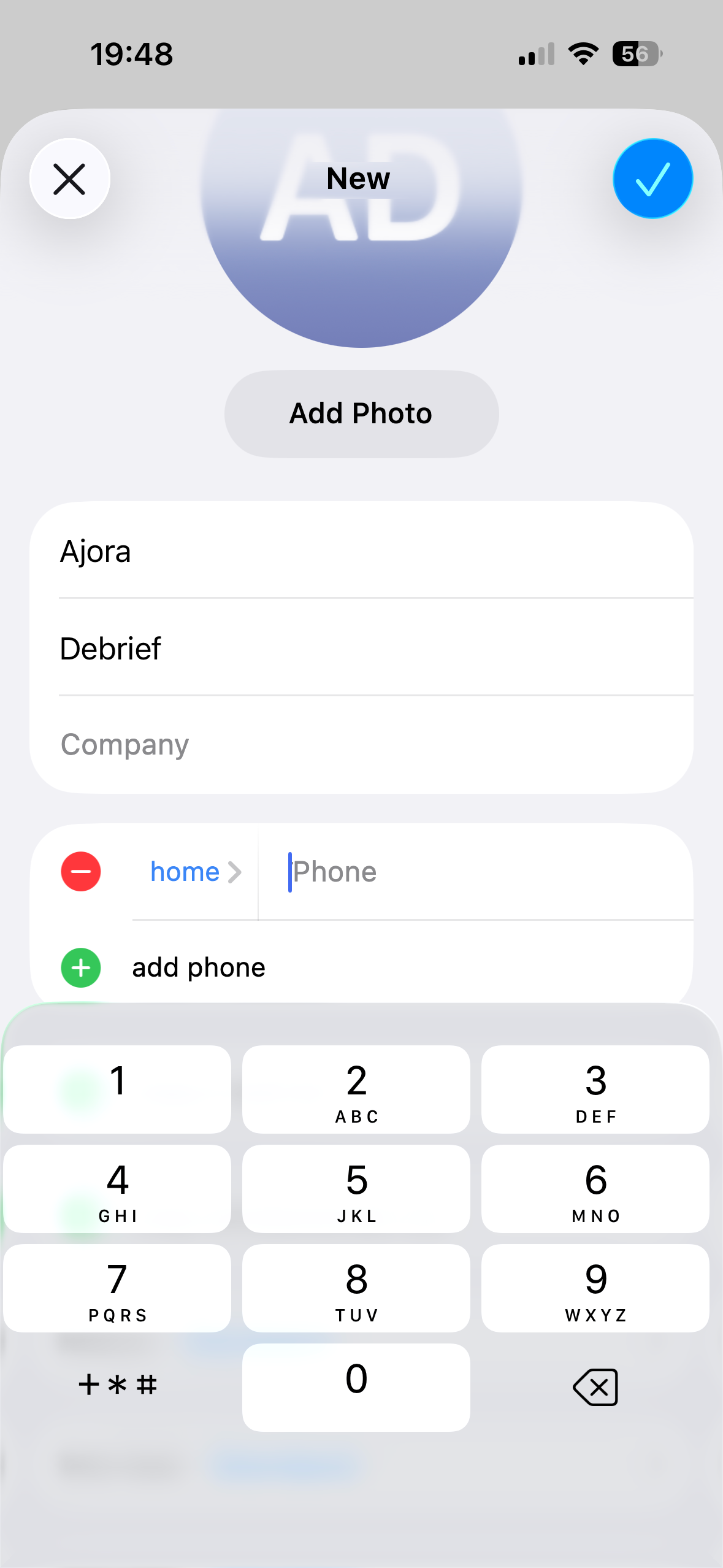
Ajora is now in your phonebook. That is the one-time setup done.
Part 2: add Ajora during a call
Use this when you are already on a call with someone and you want Ajora to listen in from that moment onwards.
As soon as Ajora joins the call it plays a beep. The other person hears it too. So tell them beforehand that you are going to record the conversation.
Tap the three dots and choose "Add call"
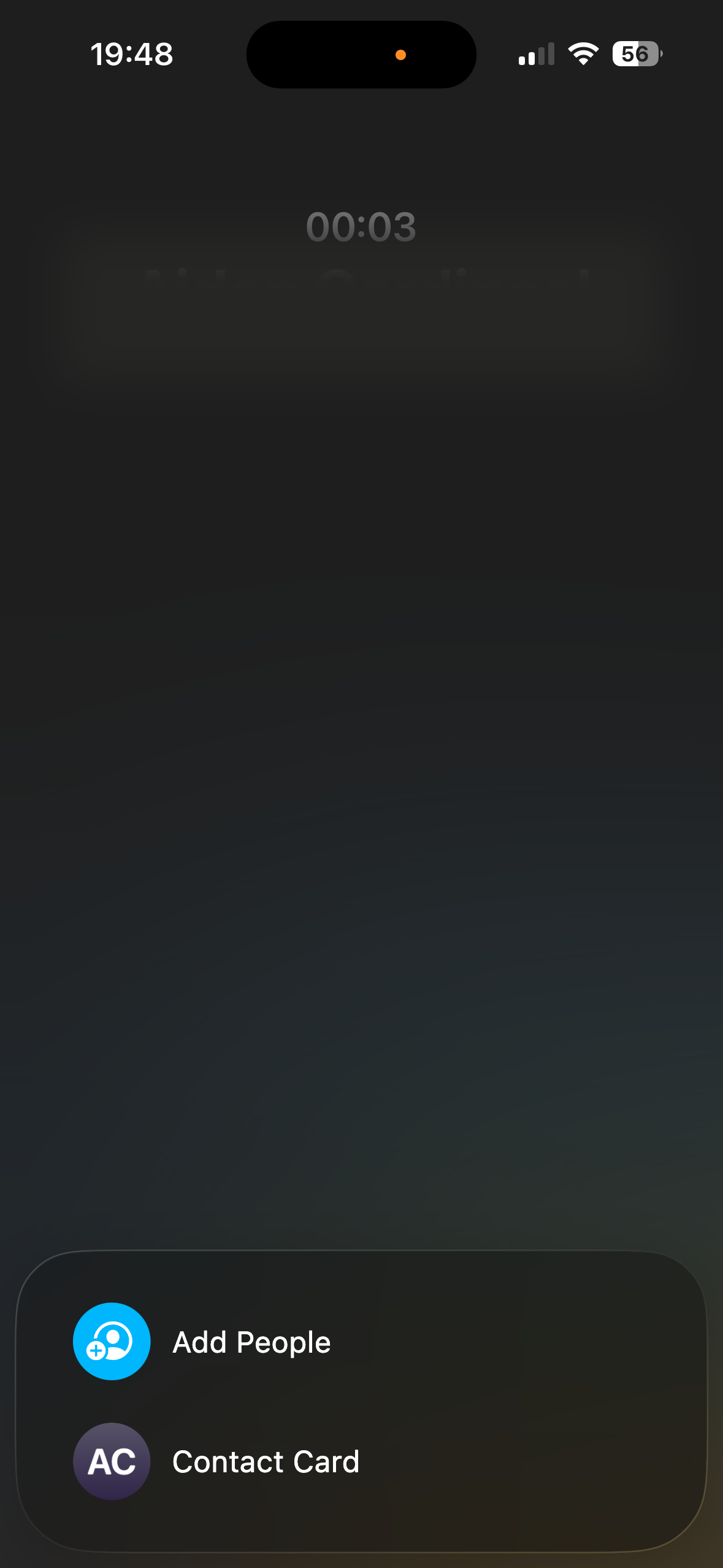
You are simply on a call. Tap the screen once so the call buttons appear. Then tap the three dots at the bottom right of the menu. An extra menu appears. Choose Add call, the icon of a person with a plus.
Search for Ajora
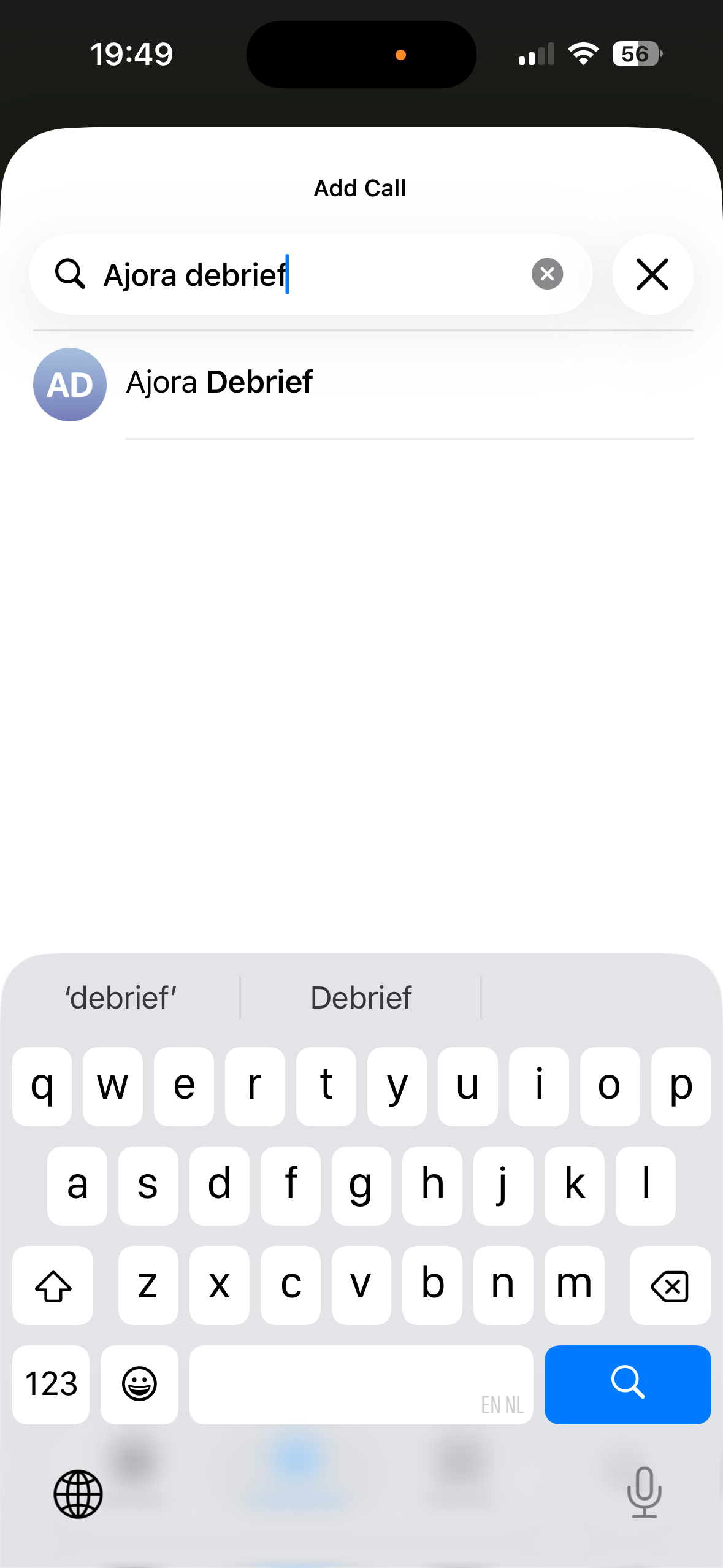
A search bar and your contacts appear. Type Ajora and tap the result.
Call Ajora
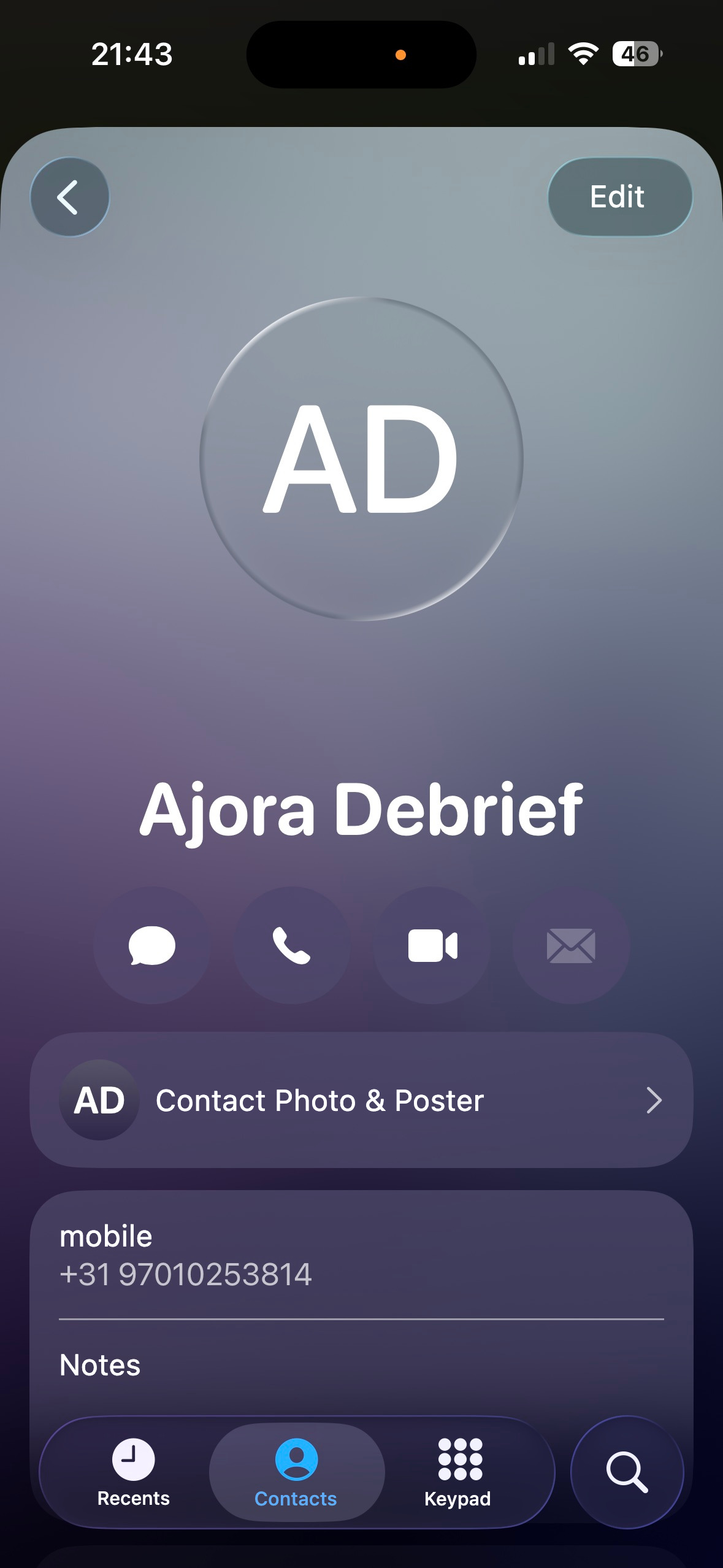
Once you tap the contact, its card appears. Tap the call icon to actually call it into the conversation.
Tap "Merge calls"
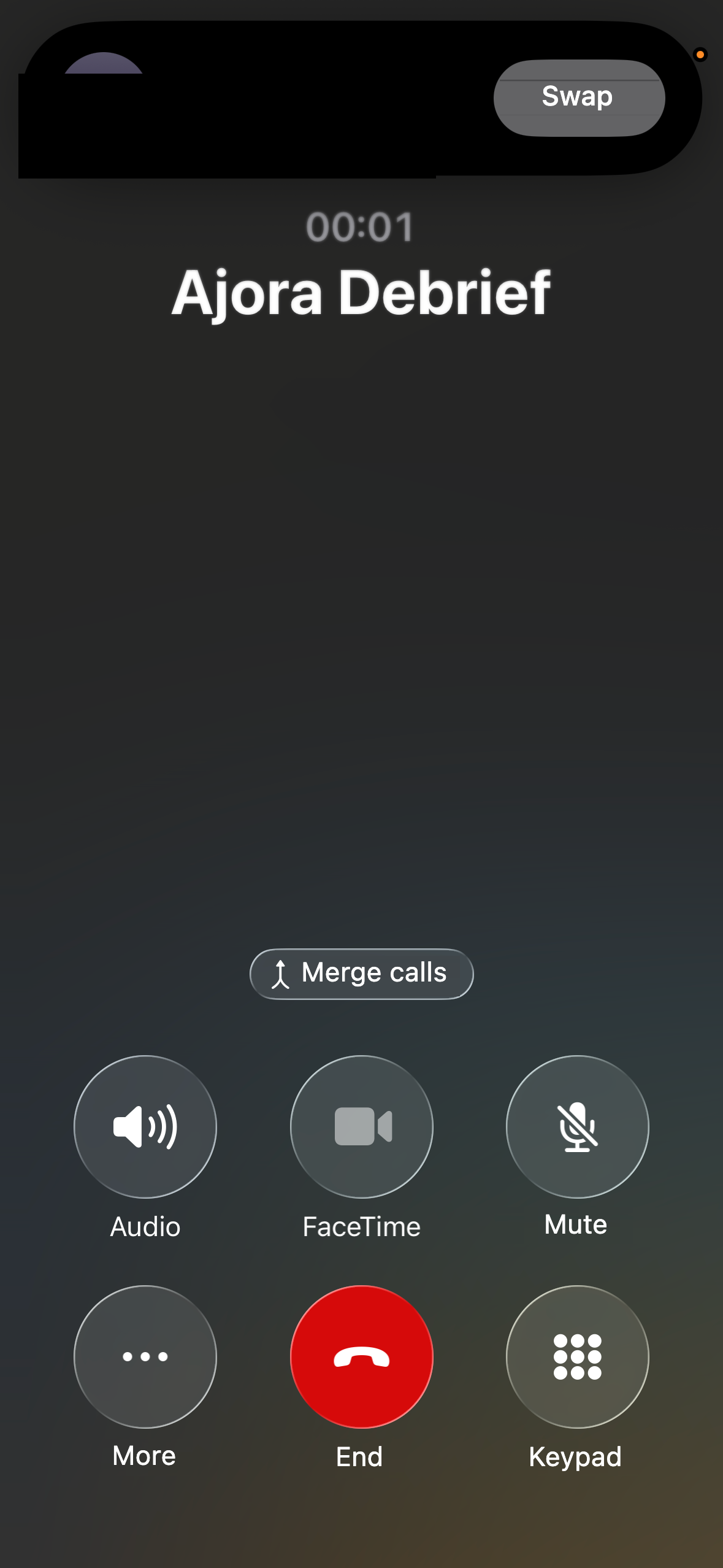
The other person is put on hold while your phone calls Ajora. Ajora answers immediately and plays a beep. As soon as it answers, a Merge calls button appears at the bottom. Tap it.
Done: Ajora is listening
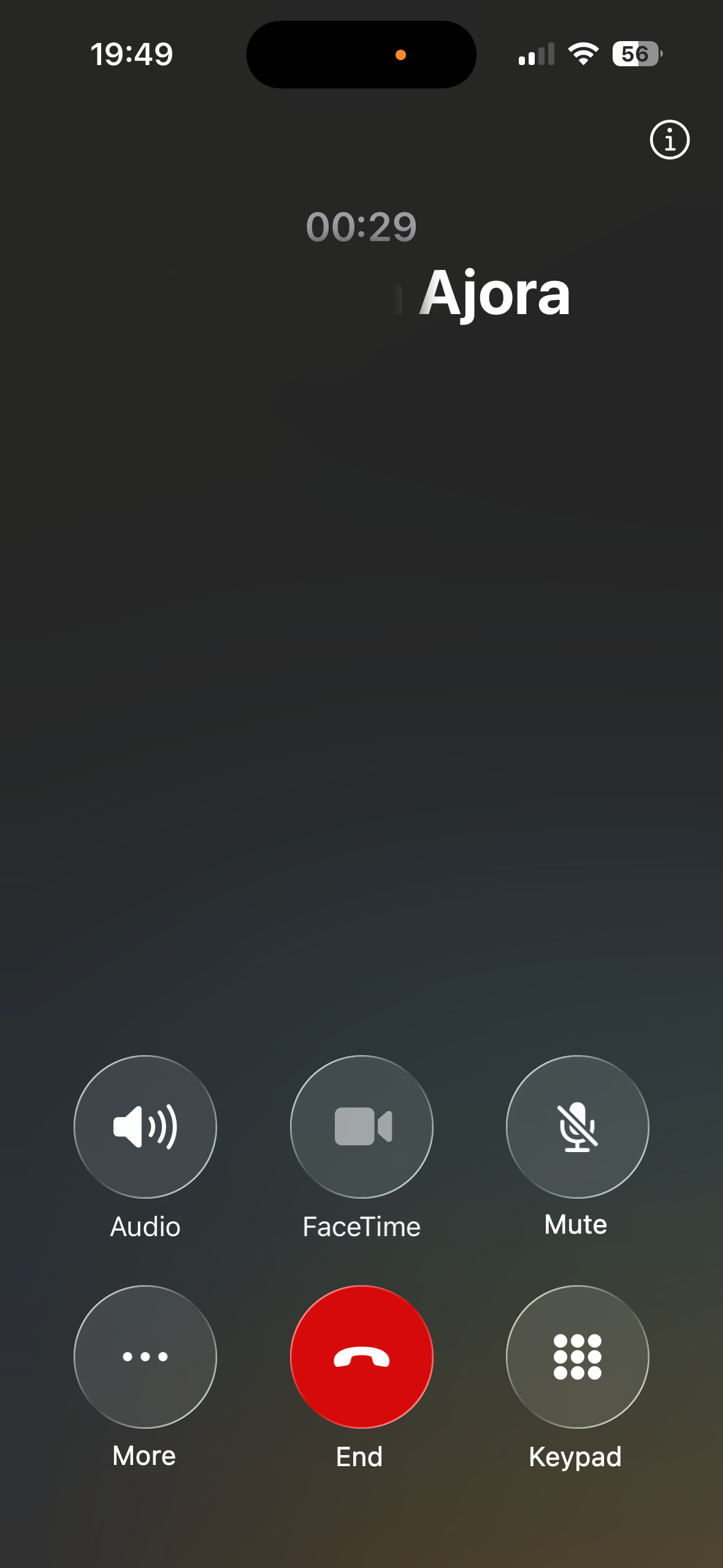
At the top you now see that you are talking to two parties at once. Ajora listens in and writes a summary in the background. You and the other person can simply keep talking. When the call is over, just hang up. The summary arrives automatically.
Finding your summary back
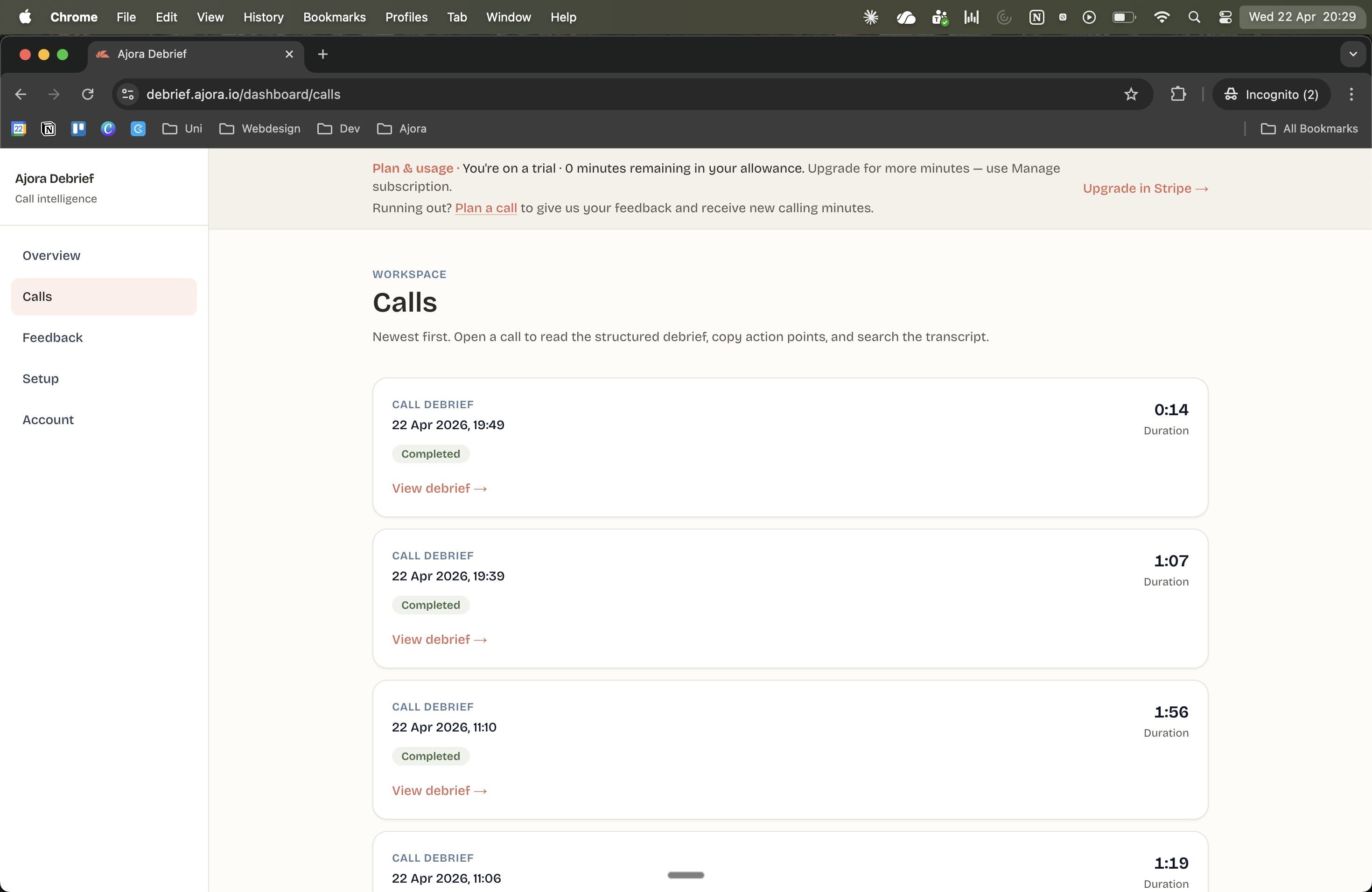
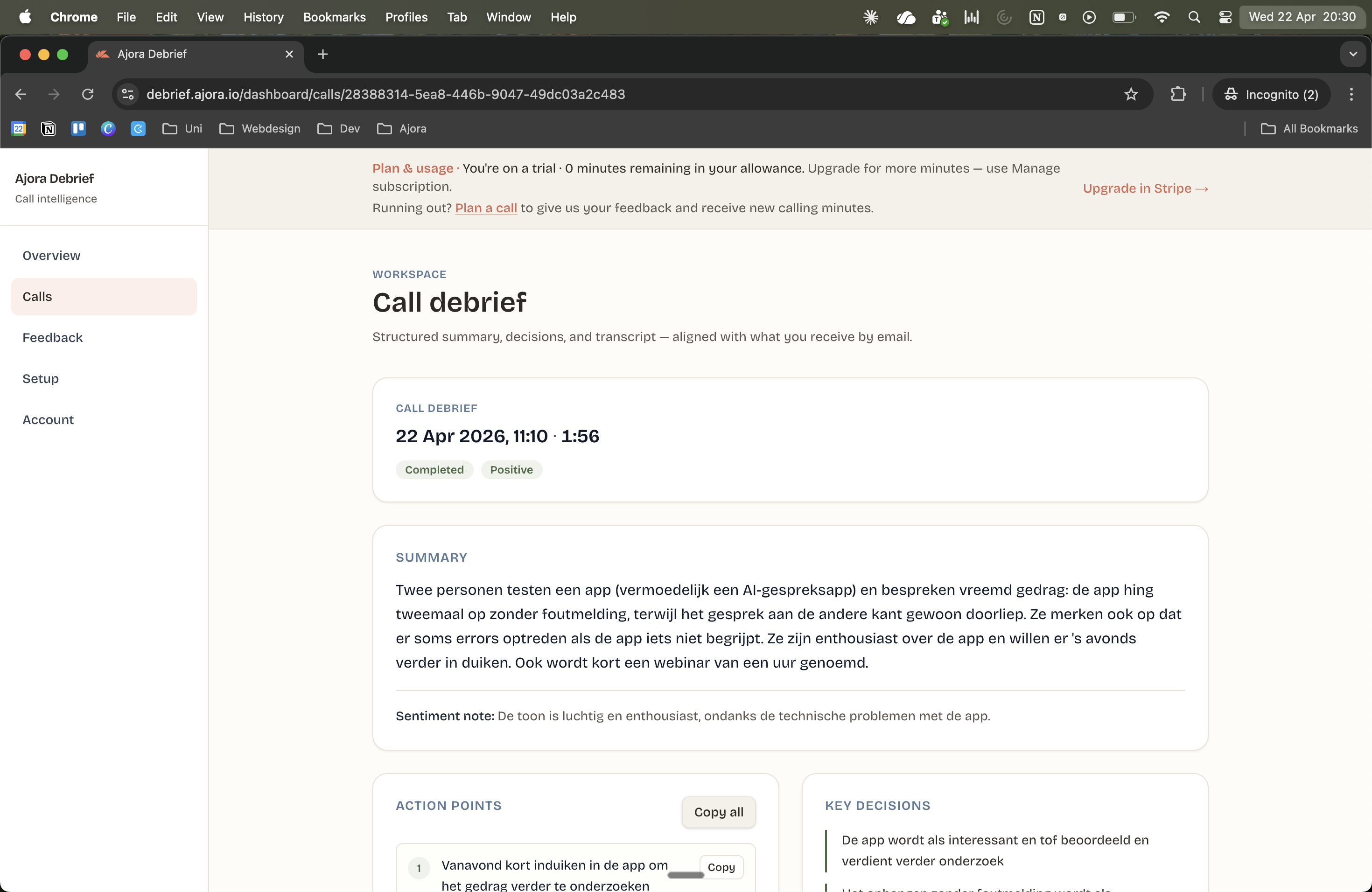
After the call the summary appears automatically under Calls. Click a call to see the full debrief: summary, action items and decisions.
Part 3: starting a call with Ajora yourself
Sometimes you know in advance that you are going to call someone and that you want Ajora to listen in. Then it helps to call Ajora first and the person you wanted to speak to second. That way Ajora misses nothing from the start.
Do not forget: Ajora plays a beep as soon as it joins the call. Let the other person know that you are recording.
Call Ajora first
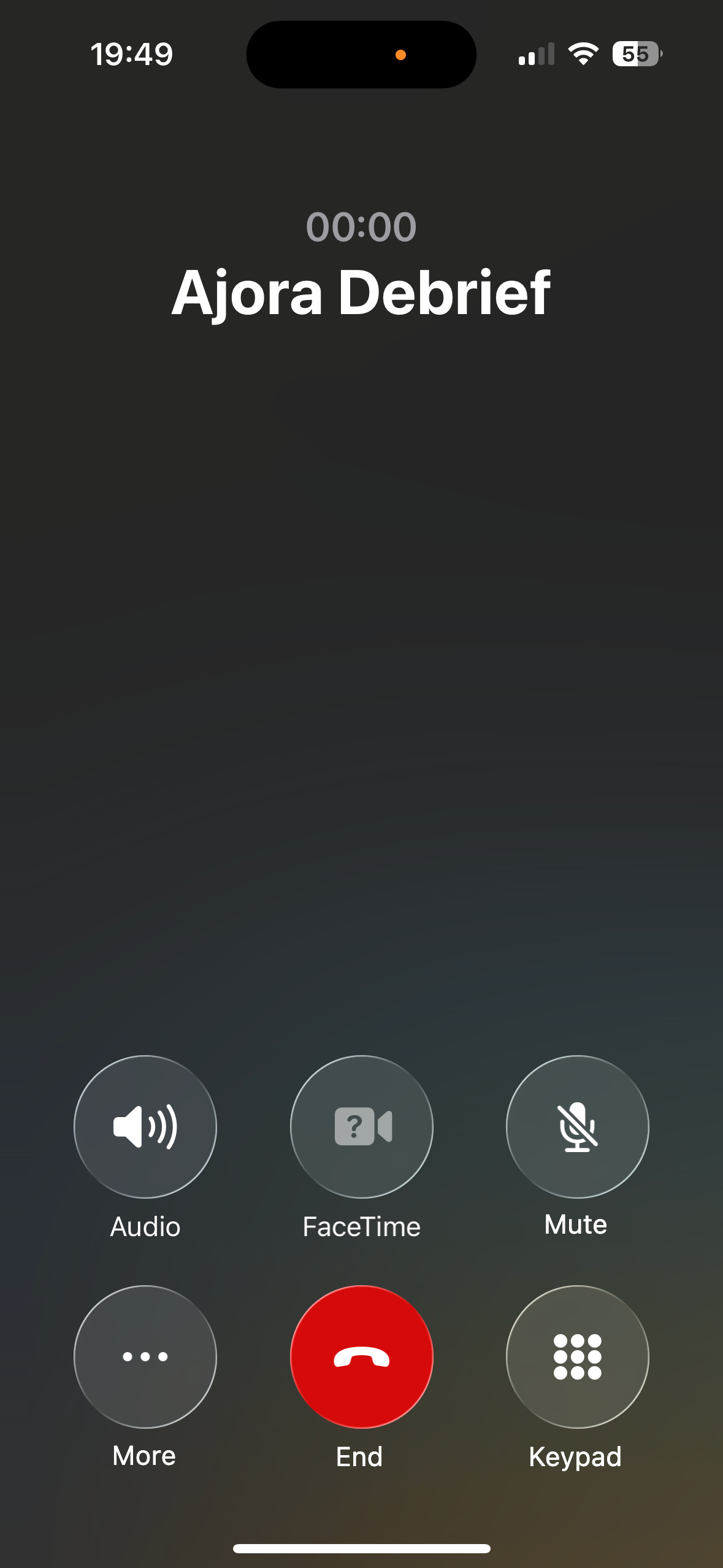
Open the phone app, find Ajora in your contacts and tap the number to call it. Ajora answers straight away.
Then add the person you wanted to speak to
Follow the same steps as in part 2: tap the screen, then the three dots and choose Add call. Find the contact or type the number, tap the call icon and tap Merge calls as soon as they answer. Now the three of you are on the call: you, the person you wanted to speak to, and Ajora listening in the background.
Frequently asked questions
Does the other person hear that Ajora is listening?
Ajora plays a beep as soon as it joins the call, and the other person hears it too. Announcing it remains your responsibility. If you use Ajora for work it is genuinely required: article 13 of the GDPR obliges you to say what you capture and why. For purely personal use it is not required, but it is the decent thing to do. More on this in is it legal to record a call.
Do I need to do anything after the call?
No. Just hang up. The summary reaches you automatically.
Can it work without adding Ajora every time?
Yes. Switch on call forwarding in the Ajora app and Ajora joins automatically as soon as you call. This does not work without the app. How it works is in setting up call forwarding.
Questions or trouble? Get in touch and we will walk you through the steps the first time.